
RESOURCES
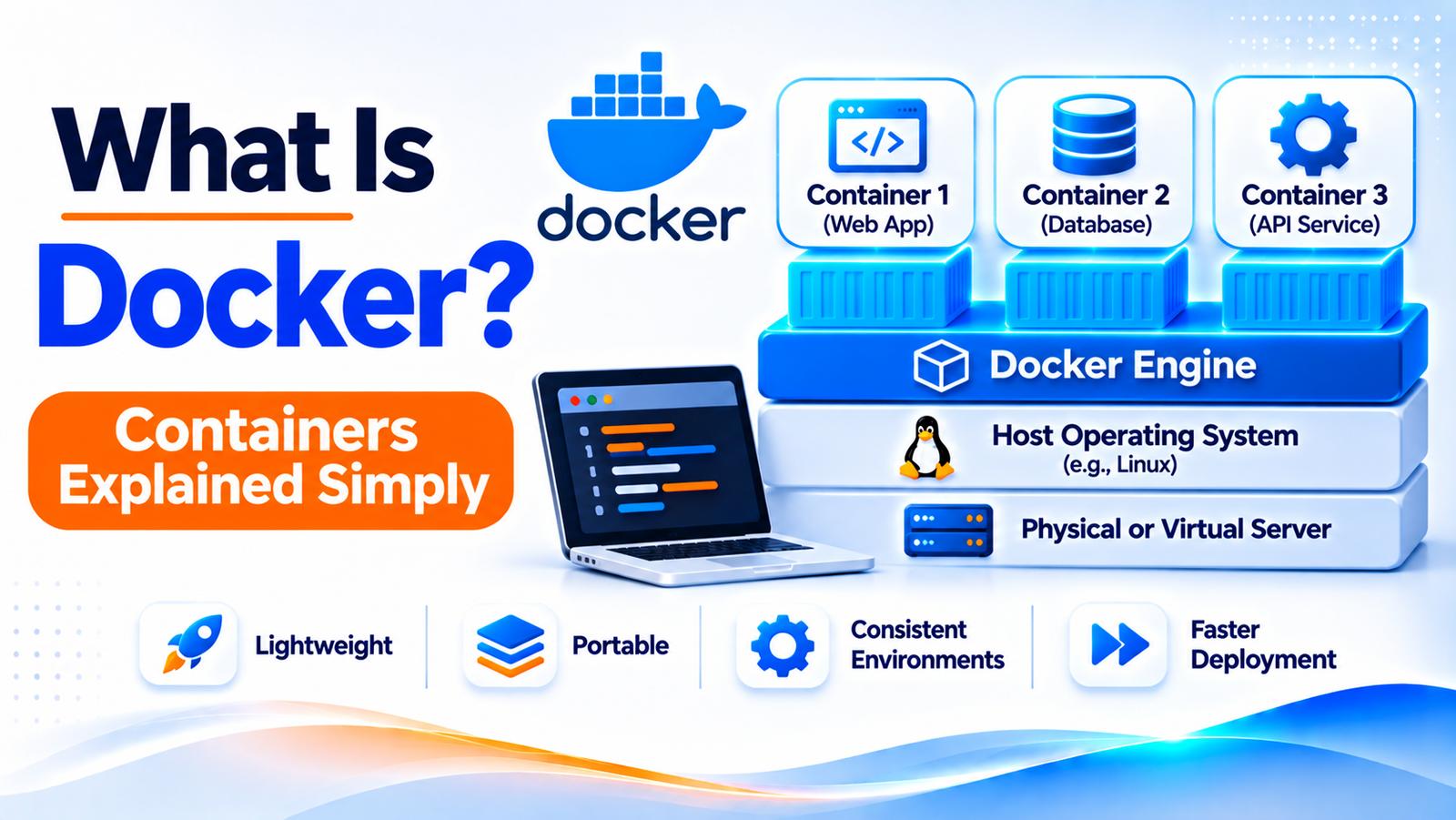
What Is Docker? Containers Explained Simply
Learn what Docker is and how containers work with simple examples. Explore Docker images, Dockerfiles, containers vs virtual machines, commands, and real-world uses.
Vyomanant Academy
Build these skills hands-on
Explore structured, practical technology programs from Vyomanant Academy.
Explore CoursesOn this page
What Is Docker? Containers Explained Simply
Introduction
Imagine you build a small web application on your computer.
Everything works perfectly.
You send the application to a teammate, but they cannot run it.
Their computer has a different software version. A required library is missing. Some settings are configured differently.
You might hear the familiar phrase:
"But it works on my computer!"
This is one of the problems Docker helps solve.
Docker makes it easier to package applications with the software components they need and run them consistently across compatible environments.
It is widely used in software development, testing, cloud computing, and DevOps.
But what exactly is Docker? What is a container? And how is a container different from a virtual machine?
Let's understand these concepts step by step.
What Will You Learn?
In this beginner-friendly guide, you'll understand:
- Docker: What it is and why developers use it.
- Containers: How applications run in isolated environments.
- Docker Images: How reusable application packages work.
- Dockerfiles: How container images are built.
- Docker Engine: What runs and manages containers.
- Docker vs Virtual Machines: How these technologies differ.
- Basic Commands: How to start using Docker.
- Practical Example: How to run a simple website inside a container.
- Real-World Uses: Where Docker fits into modern IT.
No previous Docker experience is required.
1. What Is Docker?
Docker is a platform and collection of tools used to build, package, distribute, and run applications in containers.
A container provides an isolated environment in which an application can run with its required software dependencies.
Simple Definition
Docker helps you package an application and its dependencies into a container image so the application can run consistently in compatible environments.
For example, a web application might need:
- A particular Python version.
- Several Python libraries.
- Application source code.
- Configuration files.
- A command to start the application.
Docker allows these requirements to be described and packaged into an image.
A container can then be created from that image.
What Problems Does Docker Help Solve?
Docker can help reduce problems involving:
- Different Environments: Applications behaving differently across computers.
- Missing Dependencies: Required software not being installed.
- Complex Setup: Repeating lengthy installation steps.
- Application Isolation: Keeping application environments separate.
- Deployment Consistency: Using the same image across development, testing, and production.
Important: Docker does not guarantee that an application behaves identically everywhere. Operating system compatibility, CPU architecture, networking, storage, and external services can still affect its behavior.
Key Point: Docker packages and runs applications in containers, making many development and deployment tasks more repeatable.
2. Understanding Docker with a Real-Life Analogy
Imagine a company shipping products around the world.
The products may be very different:
- Books.
- Electronics.
- Clothing.
- Furniture.
Without standardized packaging, every product might require a different handling process.
Shipping would become complicated.
Now imagine using standardized shipping containers.
The contents can differ, but the containers follow a common format that shipping systems know how to handle.
Docker uses a similar idea.
The Shipping Container Analogy
| Shipping System | Docker Concept |
|---|---|
| Product being shipped | Application |
| Required packaging and contents | Application dependencies and files |
| Standard shipping container | Container image and container environment |
| Shipping equipment | Container runtime and host infrastructure |
| Destination | Compatible computer or server |
Example
Suppose a developer creates a Python web application.
The application needs Python and several libraries.
Instead of asking every teammate to manually install the correct dependencies, the developer creates a Docker image.
Other team members can use that image to start a container.
This reduces setup differences and helps everyone work with the same packaged application.
Where the Analogy Ends
A Docker container is not a physical box containing a complete independent computer.
On Linux, containers use operating-system features to isolate processes and manage resources.
They generally share the host's Linux kernel rather than running a separate kernel for each container.
Remember: Docker standardizes how applications are packaged and run, not the underlying hardware itself.
3. What Is a Container?
A container is an isolated environment for running one or more processes with their required application files and dependencies.
A container typically includes access to:
- Application Code: The program being executed.
- Dependencies: Libraries and software required by the application.
- File System: A container-specific view of files.
- Networking: Configurable network connectivity.
- Process Environment: Isolated process and resource settings.
Example: Two Applications on One Server
Imagine a server needs to run two applications.
- Application A: Uses Python and particular libraries.
- Application B: Uses Node.js and different libraries.
Without isolation, managing their dependencies may become complicated.
With Docker, each application can run in its own container.
          Physical or Virtual Server
                     |
              Container Runtime
                     |
             +-------+-------+
             |               |
             v               v
       Container A       Container B
       Python App        Node.js App
       Dependencies      Dependencies
Each container has its own application environment.
However, both containers still depend on the underlying host infrastructure.
Are Containers Completely Independent?
No.
Containers provide isolation, but they are not equivalent to separate physical computers.
On a Linux host, containers generally share the host kernel. Their isolation depends on operating-system features, runtime configuration, and security controls.
Key Point: Containers help run applications separately while sharing underlying computing resources.
4. What Is a Docker Image?
A Docker image is a read-only template containing the files and metadata needed to create a container.
An image may include:
- Application files.
- Runtime software.
- Required libraries.
- Default environment settings.
- Instructions for starting the application.
Image vs Container
The distinction is important.
- Docker Image: The packaged template.
- Docker Container: A running or stopped instance created from an image.
Simple Analogy
Think of a recipe and a prepared meal.
- Recipe: Describes what is needed.
- Prepared Meal: Is the result of following the recipe.
Similarly, an image provides the packaged application definition, while a container is an instance created from that image.
The analogy is not exact because Docker images contain actual filesystem layers and metadata, not just written instructions.
Example
You can download the official Nginx image:
docker pull nginx
This downloads the image from the configured container registry.
You can then create and start a container:
docker run -d --name web-demo -p 8080:80 nginx
The command starts an Nginx container and maps port 8080 on the host to port 80 inside the container.
You can usually access the default Nginx page at:
http://localhost:8080
This assumes Docker is installed and running, the port is available, and local networking permits access.
Remember: One Docker image can be used to create multiple containers.
5. How Does Docker Work?
Docker uses several components to build and run containers.
1. Docker Client
The Docker client is the interface used to send commands.
For example:
docker ps
This requests information about running containers.
2. Docker Daemon
The Docker daemon, commonly called dockerd, manages Docker objects such as images, containers, networks, and volumes.
It performs many of the operations requested through the Docker client.
3. Docker Engine
Docker Engine is the container platform that includes the daemon, APIs, and related components needed to manage containers.
4. Container Runtime
The runtime helps create and execute containers using the underlying operating system's capabilities.
Docker commonly uses containerd and related runtime components.
5. Container Registry
A container registry stores and distributes container images.
Examples include:
- Docker Hub.
- GitHub Container Registry.
- Amazon Elastic Container Registry.
- Google Artifact Registry.
Simplified Docker Architecture
           Developer
               |
               v
         Docker Client
               |
               v
          Docker Engine
               |
       +-------+-------+
       |               |
       v               v
     Images         Containers
       ^
       |
 Container Registry
This diagram is simplified. Docker Engine uses additional runtime and operating-system components.
What Happens When You Run a Container?
When you execute a command such as:
docker run nginx
Docker generally:
- Checks whether the requested image is available locally.
- Downloads it from a registry if needed.
- Creates a container from the image.
- Sets up the required container environment.
- Starts the configured application process.
Key Point: Docker provides tools for managing the entire process, from obtaining an image to running an application container.
6. What Is a Dockerfile?
A Dockerfile is a text file containing instructions for building a Docker image.
It describes how to prepare the application environment.
Example: A Simple Python Application
Imagine you have a file named app.py.
print("Hello from Docker!")
Create a file named Dockerfile in the same directory.
FROM python:3.12-slim

WORKDIR /app

COPY app.py .

CMD ["python", "app.py"]
Understanding Each Instruction
FROM: Selects a base image.WORKDIR: Sets the working directory inside the image.COPY: Copies files into the image.CMD: Specifies the default command to run when a container starts.
Build the Image
Run this command in the project directory:
docker build -t hello-docker .
Here:
docker build: Builds an image.-t hello-docker: Assigns a name to the image..: Uses the current directory as the build context.
Run the Container
docker run --rm hello-docker
Expected output:
Hello from Docker!
The --rm option removes the container after its process finishes.
What Did You Accomplish?
You:
- Created a Python program.
- Described its runtime environment in a Dockerfile.
- Built a Docker image.
- Ran the application in a container.
Beginner Tip: Start with a small Dockerfile before exploring advanced image-building techniques.
7. Docker Containers vs Virtual Machines
Docker containers and virtual machines both help isolate workloads, but they operate differently.
What Is a Virtual Machine?
A virtual machine (VM) is a software-defined computer that runs using virtualized hardware.
A VM typically includes:
- A guest operating system.
- Virtual CPU and memory.
- Virtual storage.
- Applications and dependencies.
A hypervisor manages the virtualized hardware environment.
What Is a Docker Container?
A Docker container packages an application and its dependencies into an isolated process environment.
On Linux, containers generally share the host kernel.
Architecture Comparison
       VIRTUAL MACHINES

         Applications
              |
         Guest OS
              |
      Virtual Hardware
              |
          Hypervisor
              |
        Host Hardware


           CONTAINERS

         Applications
              |
        Dependencies
              |
      Container Runtime
              |
        Host OS Kernel
              |
        Host Hardware
These are simplified representations. Real systems may include additional host operating system and virtualization layers.
Docker vs Virtual Machines: Quick Comparison
| Feature | Docker Containers | Virtual Machines |
|---|---|---|
| Isolation | Operating-system-level isolation | Virtualized machine isolation |
| Operating System | Generally shares the host kernel | Runs a guest operating system |
| Startup | Often starts quickly | Often takes longer to boot |
| Resource Usage | Usually lower per application instance | Usually higher due to guest OS |
| Typical Purpose | Packaging and running applications | Running complete operating environments |
| Common Uses | Microservices, development, CI/CD | Server virtualization, testing, infrastructure |
Can Docker Run Inside a Virtual Machine?
Yes.
This is common in cloud environments.
For example:
- A cloud provider runs physical servers.
- A customer creates a Linux virtual machine.
- Docker runs inside the VM.
- Several application containers run inside Docker.
Important: Docker Desktop on Windows and macOS commonly uses a Linux virtual machine to run Linux containers.
Key Point: Containers and virtual machines are complementary technologies, not direct replacements in every situation.
8. What Is Docker Hub?
Docker Hub is an online service for storing, finding, and distributing container images.
It is a container registry.
What Can You Find on Docker Hub?
Images for technologies such as:
- Nginx.
- Python.
- Node.js.
- PostgreSQL.
- Redis.
Example: Downloading an Image
docker pull python:3.12-slim
This downloads the specified Python image tag.
Example: Viewing Local Images
docker images
This displays images stored locally.
Public vs Private Images
Container registries may support:
- Public Images: Available for others to discover and download.
- Private Images: Restricted to authorized users.
Security Considerations
Before using an image:
- Check its publisher and provenance.
- Prefer trusted, maintained sources.
- Review supported versions.
- Scan for known vulnerabilities where appropriate.
- Avoid placing secrets inside images.
Remember: A publicly available image is not automatically secure or appropriate for production use.
9. Essential Docker Commands for Beginners
You do not need to memorize every Docker command.
Start with these commonly used commands.
| Command | Purpose |
|---|---|
docker --version |
Check the Docker CLI version |
docker pull |
Download an image |
docker images |
List local images |
docker run |
Create and start a container |
docker ps |
List running containers |
docker ps -a |
List all containers |
docker logs |
View container logs |
docker exec |
Run a command inside a running container |
docker stop |
Stop a running container |
docker start |
Start an existing stopped container |
docker rm |
Remove a container |
docker rmi |
Remove a local image |
docker build |
Build an image |
docker inspect |
Display detailed object information |
Example: List Running Containers
docker ps
Example: View All Containers
docker ps -a
Example: Stop a Container
docker stop web-demo
Example: View Logs
docker logs web-demo
Example: Remove a Stopped Container
docker rm web-demo
Beginner Tip: Use docker ps -a to identify containers before stopping or removing them.
10. Practical Example: Run a Website Using Docker
Let's run a simple website using an Nginx container.
This project helps you understand how Docker serves application files.
What Do You Need?
- Docker installed and running.
- A terminal.
- A text editor.
- An available local port.
Step 1: Create a Project Folder
Create a folder named:
docker-website
Inside it, create an index.html file.
Step 2: Add Website Content
Add the following HTML:
<!DOCTYPE html>
<html lang="en">
<head>
    <meta charset="UTF-8">
    <title>My Docker Website</title>
</head>
<body>
    <h1>Hello from Docker!</h1>
    <p>This website is running inside a container.</p>
</body>
</html>
Step 3: Create a Dockerfile
In the same directory, create a file named Dockerfile.
Add:
FROM nginx:alpine

COPY index.html /usr/share/nginx/html/index.html
This Dockerfile:
- Uses an Nginx base image.
- Copies your webpage into the location served by Nginx.
Step 4: Build the Docker Image
Open a terminal in the project directory.
Run:
docker build -t my-docker-website .
Step 5: Run the Container
docker run -d \
  --name my-website \
  -p 127.0.0.1:8080:80 \
  my-docker-website
This command:
-d: Runs the container in the background.--name my-website: Gives the container a name.-p 127.0.0.1:8080:80: Maps local port8080to container port80, bound to the host's loopback interface.my-docker-website: Specifies the image to run.
Step 6: Open the Website
Visit:
http://localhost:8080
You should see:
Hello from Docker!
This website is running inside a container.
Step 7: Check the Running Container
docker ps
Step 8: Stop the Container
docker stop my-website
Step 9: Remove the Container
docker rm my-website
The image remains available locally unless you remove it separately.
What Did You Learn?
You successfully:
- Created a website.
- Packaged it into a Docker image.
- Started a container.
- Published a container port locally.
- Accessed the website through a browser.
- Stopped and removed the container.
Congratulations! You have completed a simple Docker project.
11. What Are Docker Volumes?
Containers have a writable filesystem layer, but changes stored only in that layer are generally lost when the container is removed.
This creates an important question:
What happens when an application needs to store data that must survive container replacement?
Docker provides storage mechanisms, including volumes.
What Is a Docker Volume?
A Docker volume is a storage resource managed by Docker that can persist independently of a container's lifecycle.
Volumes are useful for:
- Database files.
- Uploaded content.
- Application data.
- Other persistent information.
Simple Example
Imagine a database running in a container.
If all database data is stored only in the container's writable layer, removing that container may remove the data with it.
A volume allows the data to remain available when the container is replaced, provided the volume is retained and correctly reused.
Important Distinction
- Image: Defines the packaged application.
- Container: Runs the application.
- Volume: Can store data independently of the container.
Remember: Volumes help with persistence, but they do not replace a proper backup strategy.
12. What Is Docker Compose?
Docker Compose is a tool for defining and running applications that use multiple containers.
Imagine a website that needs:
- A web application.
- A database.
- A caching service.
Instead of manually starting each container with a long command, you can describe the services in a Compose file.
Example Architecture
          User's Browser
                |
                v
          Web Application
                |
          +-----+-----+
          |           |
          v           v
       Database      Cache
What Does Docker Compose Help With?
Compose can define:
- Services.
- Container images.
- Networks.
- Volumes.
- Port mappings.
- Environment settings.
A common Compose configuration file is named:
compose.yaml
You can start services defined in a valid Compose file using:
docker compose up -d
And stop and remove the Compose-managed containers and networks using:
docker compose down
By default, docker compose down does not remove named volumes unless you explicitly request volume removal.
Key Point: Docker Compose helps manage multi-container applications through a single configuration.
13. Where Is Docker Used in the Real World?
Docker is useful in several IT and software environments.
1. Software Development
Developers can use containers to create repeatable application environments.
Example: Team members run the same application image instead of installing every dependency manually.
2. Application Testing
Containers help teams create isolated test environments.
Example: A developer tests an application against a specific database version.
3. CI/CD Pipelines
Automated pipelines can build, test, and publish container images.
Example: A pipeline creates a new image after application tests pass.
4. Microservices
A microservices architecture divides an application into smaller services that can be developed and operated independently.
Containers are commonly used to package these services.
Example: An online store uses separate services for products, payments, and notifications.
5. Cloud Computing
Containers can run on cloud virtual machines or managed container platforms.
Example: A business deploys a containerized web application to a cloud environment.
6. DevOps
Docker supports repeatable builds and application packaging.
Example: Development and operations teams use the same tested container image during deployment.
Remember: Docker is useful for many workloads, but not every application needs containers.
14. What Are the Benefits of Docker?
1. Consistent Application Packaging
Docker images include application files and dependencies, reducing differences between compatible environments.
2. Faster Environment Setup
Developers can often start a container instead of manually installing multiple software components.
3. Application Isolation
Containers separate application processes and files to a configurable degree.
4. Efficient Resource Usage
Containers generally have less overhead than running a separate guest operating system for every application instance.
5. Repeatable Deployments
Teams can build and distribute versioned images.
6. Easier Testing
Different application versions can be tested in separate container environments.
7. Integration with DevOps Tools
Docker can be used alongside Git, CI/CD systems, registries, and orchestration platforms.
Important: These benefits depend on correct image design, configuration, and operational practices.
15. What Are the Limitations and Challenges of Docker?
Docker is powerful, but it is not a solution to every infrastructure problem.
1. Security Risks
Containers share underlying system resources and may expose risks if misconfigured.
Good practices include:
- Using trusted images.
- Keeping dependencies updated.
- Avoiding unnecessary privileges.
- Restricting network access.
- Protecting secrets.
- Running applications as non-root users where practical.
2. Persistent Data Management
Applications that store important data need suitable volumes, backups, and recovery procedures.
3. Networking Complexity
Multi-container applications may require careful network and service configuration.
4. Image Maintenance
Container images must be maintained as dependencies and security requirements change.
5. Operating System Compatibility
Linux containers require a compatible Linux kernel environment.
Running them on Windows or macOS commonly involves virtualization.
6. Learning Curve
Beginners need to understand images, containers, ports, storage, and Dockerfiles.
Key Point: Docker simplifies application packaging, but reliable operations still require security, monitoring, storage, and infrastructure planning.
16. Docker vs Kubernetes: What Is the Difference?
Docker and Kubernetes are often mentioned together, but they solve different problems.
Docker
Docker provides tools for building images and running containers.
It is commonly used for:
- Local development.
- Image building.
- Application testing.
- Running containers.
- Managing container-based workflows.
Kubernetes
Kubernetes is a container orchestration platform.
It helps manage containerized workloads across a cluster of machines.
Kubernetes supports capabilities such as:
- Scheduling workloads.
- Maintaining desired application replicas.
- Service discovery.
- Rolling updates.
- Workload recovery.
Quick Comparison
| Docker | Kubernetes |
|---|---|
| Builds and runs containers | Orchestrates containerized workloads |
| Common for local development and packaging | Common for managing applications across clusters |
| Provides Dockerfiles and image-building tools | Uses declarative workload configuration |
| Can run individual containers | Manages groups of containers at scale |
Important: Kubernetes does not require Docker Engine as its container runtime. It commonly works with runtimes such as containerd or CRI-O.
Remember: Learn Docker fundamentals before moving into Kubernetes.
17. How Can Beginners Start Learning Docker?
Follow this practical learning path.
Step 1: Understand Operating System Basics
Learn:
- Processes.
- Files and directories.
- Networking.
- Ports.
- Permissions.
Step 2: Learn Basic Linux Commands
Practice:
pwd
ls
cd
mkdir
cat
Step 3: Install Docker
Choose the appropriate installation method for your operating system.
Use the official Docker documentation for installation instructions.
Step 4: Run Your First Container
Try the introductory image:
docker run --rm hello-world
This checks whether Docker can obtain and run a simple container image.
Step 5: Learn Images and Containers
Practice:
docker images
docker ps -a
docker pull nginx
Step 6: Build a Custom Image
Create a Dockerfile for a small application.
Build it using:
docker build -t my-app .
Step 7: Practice Container Networking
Learn how port publishing works.
For example:
docker run -d -p 127.0.0.1:8080:80 nginx
Step 8: Explore Volumes
Understand how to preserve data independently of containers.
Step 9: Learn Docker Compose
Create a small application with two services.
For example:
- A web application.
- A database.
Step 10: Connect Docker with CI/CD
Explore how an automated pipeline can:
- Retrieve application code.
- Run tests.
- Build a container image.
- Publish the image to a registry.
- Deploy an approved version.
Beginner Tip: Build one simple website container before exploring complex multi-service architectures.
18. Frequently Asked Questions (FAQs)
Q1. What is Docker in simple words?
Docker is a platform that helps developers package applications with their dependencies and run them in isolated containers.
Q2. What is a Docker container?
A Docker container is an instance of a container image running in an isolated process environment.
Q3. What is the difference between a Docker image and a container?
An image is the packaged template used to create containers.
A container is an instance created from that image.
Q4. Is Docker a virtual machine?
No. Docker commonly uses operating-system-level containerization rather than running a complete guest operating system for each container.
Q5. Is Docker free?
Docker Engine is open-source software. Some Docker products and services have licensing or subscription requirements, depending on the product and usage.
Q6. Is Docker necessary for DevOps?
No. Docker is widely used in DevOps, but DevOps practices can be implemented without Docker.
Q7. Can Docker run on Windows and macOS?
Yes. Docker tools are available for Windows and macOS. Linux containers on these systems commonly run through a Linux virtual machine.
Q8. Do I need to learn Linux before Docker?
Basic Linux knowledge is helpful, especially for understanding processes, file permissions, networking, and container behavior.
Q9. What is the difference between Docker and Kubernetes?
Docker provides tools for building and running containers, while Kubernetes orchestrates containerized workloads across computing environments.
19. Key Takeaways
- Docker is a platform for building, distributing, and running containerized applications.
- Containers provide isolated environments for running application processes.
- Docker images package application files, dependencies, and runtime instructions.
- Dockerfiles describe how images are built.
- Docker Engine manages images, containers, networks, and volumes.
- Containers and virtual machines use different approaches to workload isolation.
- Docker volumes help preserve data independently of containers.
- Docker Compose helps manage multi-container applications.
- Docker supports DevOps and CI/CD through repeatable application packaging.
- Beginners should start with simple images, containers, and a small website project.
20. What Should You Learn Next?
Now that you understand Docker, continue with these related topics:
-
Docker Commands for Beginners: A Practical Cheat Sheet
- Learn the commands used to manage images and containers.
-
What Is a Dockerfile? Explained with Examples
- Understand how to create efficient application images.
-
Docker Compose Explained for Beginners
- Learn how to define and run multi-container applications.
-
What Is Kubernetes? Containers and Orchestration Explained
- Explore how containerized applications are managed across clusters.
-
What Is CI/CD? Explained with a Real-Life Analogy
- Understand how Docker images fit into automated software delivery.
Continue Learning with Vyomanant Academy
Docker is a valuable skill for learners exploring software development, cloud computing, DevOps, and modern application infrastructure.
Vyomanant Academy helps learners build practical knowledge in areas such as:
- Linux Fundamentals.
- Git and Version Control.
- Docker and Containerization.
- CI/CD Automation.
- Cloud Computing.
- Kubernetes.
- DevOps Practices.
Start with a small containerized application, practice regularly, and gradually explore more advanced deployment workflows.
Learn. Build. Grow.
CONTINUE EXPLORING
Recommended next

What Is Artificial Intelligence? A Simple Beginner's Guide
Learn what Artificial Intelligence (AI) means, how it works, and where we use it in everyday life, with simple examples that anyone can understand.
View resource
What Is Machine Learning? A Simple Beginner's Guide
Discover what Machine Learning is, how computers learn from data, and how predictions work. Explore key ML concepts, learning types, and real-world examples in this beginner-friendly guide.
View resource
What Is Information Technology? A Beginner's Guide
Discover what Information Technology (IT) is, how it works, its main components, everyday applications, and how beginners can start learning IT.
View resource