
RESOURCES
What Is a Server? Physical vs Virtual Servers
Learn what a server is, how servers work, and the differences between physical and virtual servers. Explore real-world examples, benefits, and IT applications.
Vyomanant Academy
Build these skills hands-on
Explore structured, practical technology programs from Vyomanant Academy.
Explore CoursesOn this page
Introduction
Imagine opening a website on your laptop or smartphone.
You enter the website address, press Enter, and the page appears.
But have you ever wondered:
Where does the website come from, and which computer sends it to your screen?
The answer often involves a server.
A server is a computer or software system that provides information, resources, or services to other computers over a network.
Servers help power many digital activities, including:
- Websites: Delivering webpages to visitors.
- Email: Sending, receiving, and storing messages.
- Online Applications: Processing user requests.
- File Sharing: Providing access to shared documents.
- Databases: Storing and retrieving application information.
- Cloud Computing: Running virtual machines and cloud-based services.
Some servers are dedicated physical computers, while others run as virtual machines on shared hardware.
What Will You Learn?
In this beginner-friendly guide, you'll understand:
- What a server is: Its meaning and purpose.
- How servers work: How they respond to requests.
- Physical servers: Dedicated hardware used to provide services.
- Virtual servers: Software-defined servers running on physical hardware.
- Key differences: Physical vs virtual servers.
- Real-world applications: Where different servers are used.
- Getting started: How beginners can explore server technology.
You don't need previous server administration experience to follow this guide.
1. What Is a Server?
A server is a computer or software system that provides resources, information, or services to other computers or programs over a network.
The devices or applications requesting those services are called clients.
In simple words:
A server provides something that another computer or application requests.
Simple Example: Opening a Website
Imagine visiting an online news website.
Here's what happens:
- You open a browser on your laptop.
- You enter the website address.
- Your browser sends a request to a web server.
- The server processes the request.
- The server returns the requested content.
- Your browser displays the webpage.
In this example:
- Client: Your browser.
- Server: The system providing the website.
- Network: The connection used to exchange information.
- Request: The message asking for website content.
- Response: The information returned by the server.
Is a Server Different from a Normal Computer?
Not necessarily.
A regular computer can act as a server if it runs software that provides services to other devices.
However, servers used in business environments may have additional features such as:
- More memory: Supporting larger workloads.
- Multiple processors or CPU cores: Handling more computing tasks.
- Redundant power supplies: Reducing the impact of certain hardware failures.
- Specialized storage: Supporting performance and reliability requirements.
- Remote management: Allowing administrators to manage systems without being physically present.
Key Point: A server is defined by the service it provides, not simply by its size or appearance.
2. How Does a Server Work?
Servers commonly operate using a client-server model.
This means one system requests a service, and another system provides it.
Understanding the Client-Server Model
Imagine ordering food at a restaurant.
- Customer: Requests a meal.
- Kitchen: Prepares the requested meal.
- Service process: Delivers the meal to the customer.
A computer network can work in a somewhat similar way.
- Client: Sends a request.
- Server: Processes the request.
- Response: Returns information or a result.
This is only an analogy. Computer requests follow defined communication protocols rather than human conversations.
Example: Logging In to an Application
Imagine signing in to an online learning platform.
Step 1: Enter Login Details
You enter your username and password.
Step 2: Send a Request
Your browser sends the login request to the application's server through a secure connection.
Step 3: Process the Request
The server checks the submitted information using its authentication system.
Step 4: Return a Response
If authentication succeeds, the application establishes an authorized session according to its security design.
Step 5: Access the Application
You can now access the features permitted for your account.
Simple Client-Server Workflow
          Client Device
        (Laptop or Phone)
                |
                | Request
                v
             Server
       (Processes Request)
                |
                | Response
                v
          Client Device
        (Displays Result)
Remember: Servers often process requests from many clients at the same time.
3. What Are the Main Types of Servers?
Servers can be categorized by the services they provide.
1. Web Server
A web server delivers website content to browsers and other clients.
Common web server software includes:
- Nginx.
- Apache HTTP Server.
- Microsoft IIS.
Example: A web server sends webpage files to a visitor's browser.
2. Application Server
An application server runs application logic and processes requests.
It may handle:
- User authentication.
- Business rules.
- Order processing.
- Application workflows.
Example: An online shopping application processes a customer's order.
3. Database Server
A database server provides database services to applications and authorized users.
Examples of database software include:
- PostgreSQL.
- MySQL.
- Microsoft SQL Server.
Example: A shopping application retrieves product information from a database.
4. File Server
A file server provides shared access to files over a network.
It may support:
- Document storage.
- File sharing.
- Access permissions.
- Centralized file management.
Example: Employees access shared company documents from a central file server.
5. Email Server
An email server helps send, receive, route, or store email messages.
Email systems commonly use protocols such as:
- SMTP for sending and transferring messages.
- IMAP for accessing and synchronizing stored messages.
Example: An organization's email system receives and stores incoming messages.
6. DNS Server
A DNS server helps resolve domain names into information such as IP addresses.
Example: DNS helps your device find the network address associated with a website.
Quick Comparison
| Server Type | Main Purpose |
|---|---|
| Web Server | Delivers website content |
| Application Server | Processes application logic |
| Database Server | Manages database requests |
| File Server | Shares files over networks |
| Email Server | Supports email communication |
| DNS Server | Resolves domain names |
Important: These are server roles. One physical or virtual machine may perform several roles, while a large application may distribute one role across many servers.
4. What Is a Physical Server?
A physical server is an actual computer with dedicated physical hardware.
It contains components such as:
- CPU: Processes instructions.
- RAM: Holds information used by running programs.
- Storage: Stores operating systems, applications, and data.
- Network Interfaces: Connect the server to networks.
- Power Supply: Provides electrical power.
- Motherboard: Connects the server's hardware components.
Physical servers are commonly installed in data centers, offices, and specialized computing facilities.
Example: A Company-Owned Server
Imagine a manufacturing company needs a server for an internal business application.
The company purchases a physical server and installs it in its data center.
The IT team:
- Installs an operating system.
- Configures networking.
- Installs the business application.
- Sets up access controls.
- Configures backups and monitoring.
- Maintains the hardware and software.
The company has direct control over the physical equipment.
What Does a Physical Server Look Like?
Physical servers are available in different designs.
- Tower Servers: Resemble desktop computers and are often used in smaller environments.
- Rack Servers: Fit into standardized equipment racks in data centers.
- Blade Servers: Compact server modules installed in a compatible shared chassis.
Benefits of Physical Servers
- Dedicated Hardware: The organization can allocate the machine's physical resources to its chosen workloads.
- Hardware Control: Administrators can select and configure hardware components.
- Predictable Resource Ownership: Physical CPU, memory, and storage capacity are assigned to that machine.
- Specialized Workloads: Certain applications may benefit from direct hardware access.
Limitations of Physical Servers
- Hardware Costs: Purchasing equipment may require significant upfront investment.
- Maintenance: Hardware failures and replacements must be managed.
- Capacity Planning: Additional resources may require hardware upgrades.
- Physical Requirements: Equipment needs suitable space, power, cooling, and connectivity.
Key Point: A physical server provides dedicated hardware, but the organization or hosting provider must manage the equipment.
5. What Is a Virtual Server?
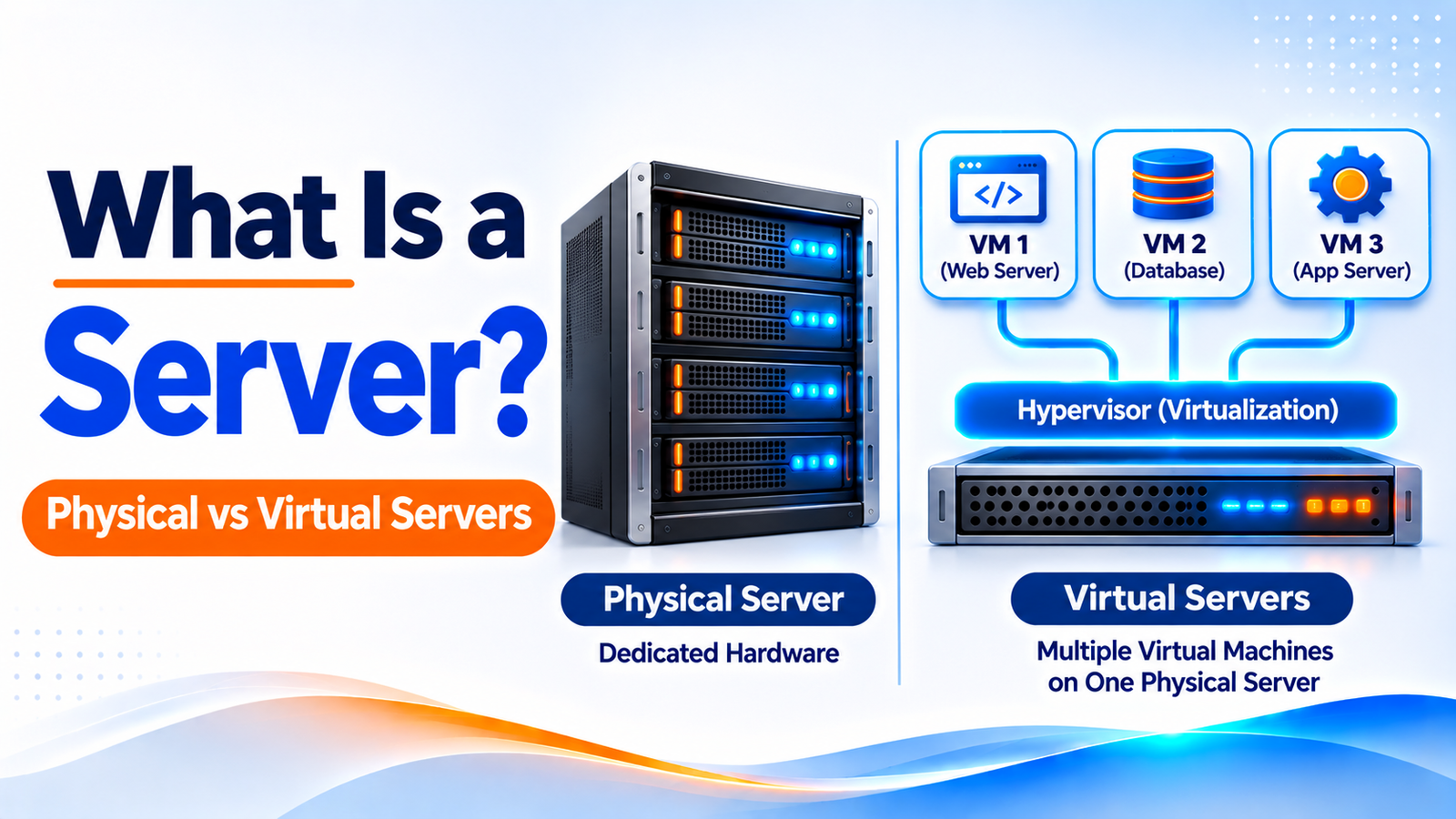
A virtual server is a software-defined server environment that runs on physical computing hardware.
It is commonly created using virtualization technology.
A virtual server often operates as a virtual machine (VM) with its own:
- Operating system.
- Virtual CPU resources.
- Allocated memory.
- Virtual storage.
- Virtual network interfaces.
Simple Example
Imagine a company owns one powerful physical server.
Instead of using that server for only one application, the company wants to run three separate systems:
- A website.
- A database.
- An internal testing environment.
Virtualization allows the company to create multiple virtual machines on the same physical server.
Each VM can run its own operating system and applications.
Simple Virtual Server Structure
          Physical Server
       (CPU, RAM, Storage)
                 |
                 v
            Hypervisor
                 |
       +---------+---------+
       |         |         |
       v         v         v
     VM 1      VM 2      VM 3
   Web App   Database   Test App
The physical server provides the hardware resources, while the virtualization layer helps create and manage the virtual machines.
Benefits of Virtual Servers
- Better Resource Utilization: Multiple workloads can share physical hardware.
- Flexible Provisioning: New VMs can often be created quickly.
- Isolation: Separate VMs provide boundaries between operating environments.
- Scalability: Allocated resources can often be adjusted within available capacity.
- Simpler Testing: Teams can create temporary environments for development and testing.
Limitations of Virtual Servers
- Shared Hardware: Multiple VMs may compete for underlying resources.
- Virtualization Overhead: The virtualization layer can introduce some performance overhead.
- Host Dependency: Failure of the underlying host may affect its VMs unless suitable recovery mechanisms exist.
- Management Complexity: VM configurations, storage, networking, and security still require administration.
Remember: A virtual server is not imaginary hardware. It uses real physical resources provided through virtualization software.
6. What Is a Hypervisor?
A hypervisor is software or a virtualization layer that creates and manages virtual machines.
It allows multiple operating systems to use the resources of a physical computer.
How Does a Hypervisor Work?
The hypervisor helps:
- Allocate CPU resources.
- Assign memory to VMs.
- Provide virtual storage.
- Connect virtual network interfaces.
- Isolate virtual machine environments.
- Manage VM execution.
Two Main Types of Hypervisors
Type 1: Bare-Metal Hypervisor
A Type 1 hypervisor runs directly on physical hardware.
Examples include:
- VMware ESXi.
- Microsoft Hyper-V.
- Xen.
Linux KVM is also widely used for server virtualization, working with the Linux kernel to provide hypervisor capabilities.
Common use: Data centers and enterprise virtualization.
Type 2: Hosted Hypervisor
A Type 2 hypervisor runs as an application on an existing host operating system.
Examples include:
- Oracle VirtualBox.
- VMware Workstation.
Common use: Desktop virtualization, development, and learning.
Simple Comparison
| Type 1 Hypervisor | Type 2 Hypervisor |
|---|---|
| Runs directly on hardware | Runs on a host operating system |
| Common in server infrastructure | Common in desktop environments |
| Designed for dedicated virtualization workloads | Convenient for local testing and learning |
Key Point: Hypervisors make it possible to operate multiple virtual machines on shared physical hardware.
7. Physical vs Virtual Servers: Key Differences
Now let's compare physical and virtual servers directly.
| Feature | Physical Server | Virtual Server |
|---|---|---|
| Hardware | Dedicated physical computer | Uses resources from physical hardware |
| Operating System | Runs directly on hardware or a virtualization layer | Runs as a guest operating system |
| Resource Allocation | Uses the physical machine's resources | Receives allocated virtual resources |
| Provisioning | May require hardware setup | Can often be created quickly |
| Scalability | May require hardware changes | Resources can often be adjusted |
| Isolation | Hardware-level separation between machines | Isolation provided by virtualization |
| Maintenance | Physical hardware requires maintenance | Underlying host hardware still requires maintenance |
| Cost Structure | Often involves hardware purchase or dedicated rental | Often involves shared infrastructure or VM rental |
| Typical Use | Dedicated workloads, specialized systems | Cloud hosting, testing, general-purpose workloads |
Which One Is Better?
Neither option is always better.
The right choice depends on:
- Application requirements.
- Performance needs.
- Budget.
- Security and compliance requirements.
- Hardware dependencies.
- Operational expertise.
- Expected growth.
Important: A physical server can also host virtual machines. Physical and virtual servers are not completely separate infrastructure choices.
8. Understanding Physical and Virtual Servers with a Real-Life Analogy
Imagine a large office building.
Physical Server: Owning the Entire Building
A physical server is somewhat like having an entire building available for your organization's activities.
You control how the available space is used.
However, you must also consider:
- Maintenance.
- Utilities.
- Repairs.
- Available capacity.
Virtual Server: Using Separate Offices
Virtual servers are somewhat like separate offices within a shared building.
Each office has its own working area, but the offices share the building's underlying facilities.
Similarly:
- Each VM has its own operating environment.
- Multiple VMs can share one physical server.
- The hypervisor helps allocate and isolate resources.
Where the Analogy Ends
Virtual machines do not divide hardware into completely independent physical sections.
They share physical resources through virtualization mechanisms, and their isolation depends on the hypervisor and system configuration.
Remember: Virtualization helps organizations use physical computing resources more flexibly.
9. How Are Physical and Virtual Servers Used in Cloud Computing?
Cloud computing commonly uses virtualization and other resource-management technologies to provide computing services.
Physical Servers in the Cloud
Cloud providers operate large data centers containing physical servers.
These machines supply:
- Processing power.
- Memory.
- Storage connectivity.
- Network connectivity.
Virtual Servers in the Cloud
Customers can create virtual machines using services such as:
- Amazon EC2.
- Azure Virtual Machines.
- Google Compute Engine.
For example, a developer can create a cloud VM to host a website without purchasing a physical server.
Example: Hosting a Business Website
Imagine a small business wants to launch its website.
The business can:
- Create a cloud account.
- Select a suitable virtual machine.
- Choose Linux or another supported operating system.
- Configure networking and security.
- Install or deploy the website.
- Monitor the server and application.
The cloud provider manages the physical data center and underlying hardware.
The customer remains responsible for the operating system, application, and relevant security settings when using a typical infrastructure VM.
What About Bare-Metal Cloud Servers?
Some cloud providers also offer bare-metal server services.
These provide access to dedicated physical server hardware rather than a conventional shared-host virtual machine.
Key Point: Cloud computing can provide both virtual and physical server options. Virtualization is common, but not every cloud service is simply a VM.
10. When Should You Use a Physical Server?
Physical servers may be suitable when an organization needs:
- Dedicated Hardware: Exclusive use of a physical machine.
- Specialized Components: Particular accelerators, adapters, or hardware devices.
- Direct Hardware Access: Applications requiring specific hardware capabilities.
- Custom Infrastructure: Greater control over hardware configuration.
- Specific Compliance Requirements: Workloads requiring a particular deployment arrangement.
Example: Specialized Computing Workload
Imagine a research organization uses a computing application that requires particular hardware accelerators.
A dedicated physical server may provide the required hardware configuration and control.
However, dedicated cloud or virtualized solutions may also be suitable, depending on the workload.
Remember: Physical hardware can offer additional control, but it also introduces equipment management responsibilities.
11. When Should You Use a Virtual Server?
Virtual servers are useful for many general-purpose IT workloads.
Common Use Cases
- Website Hosting: Running web servers and application services.
- Development: Creating isolated environments for developers.
- Testing: Testing software across different operating systems.
- Cloud Applications: Running applications on rented virtual machines.
- Business Systems: Hosting internal services and databases.
- Training Labs: Practicing Linux, networking, and administration.
Example: Software Testing
Imagine a software company needs to test an application on different operating systems.
Instead of purchasing separate physical computers, the team creates virtual machines.
For example:
- VM 1: Ubuntu Linux.
- VM 2: Windows Server.
- VM 3: Another supported Linux distribution.
The team can test the application in separate environments.
Key Point: Virtual servers are especially useful when flexibility, repeatability, and efficient hardware usage are important.
12. Are Virtual Servers the Same as Containers?
No. Virtual machines and containers are different technologies.
Both help run workloads in isolated environments, but they work differently.
Virtual Machines
A virtual machine typically includes:
- A guest operating system.
- Virtual hardware.
- Applications and dependencies.
The VM runs using a hypervisor.
Containers
Containers package applications and their dependencies into isolated execution environments.
On Linux, containers typically share the host system's kernel rather than running a separate guest kernel for each container.
Quick Comparison
| Virtual Machine | Container |
|---|---|
| Usually runs a separate guest operating system | Usually shares the host kernel |
| Uses virtualized hardware | Uses operating-system-level isolation |
| Common for complete operating environments | Common for packaging and running applications |
| Often requires more resources per instance | Often has a smaller resource footprint |
Example
A company might:
- Create a Linux virtual machine.
- Install a container runtime.
- Run several application containers inside the VM.
This means virtual machines and containers can work together.
Remember: Containers do not completely replace virtual machines. Organizations often use both technologies.
13. What Are the Main Challenges of Managing Servers?
Both physical and virtual servers require planning and administration.
1. Security
Servers may contain sensitive information and important applications.
Common security practices include:
- Installing security updates.
- Using strong authentication.
- Restricting network access.
- Managing permissions.
- Monitoring suspicious activity.
2. Performance
Servers must have enough resources for their workloads.
Administrators monitor:
- CPU usage.
- Memory consumption.
- Disk performance.
- Network traffic.
- Application response times.
3. Availability
A server failure can interrupt applications.
Organizations may use:
- Redundant infrastructure.
- Multiple application instances.
- Failover systems.
- Load balancing.
- Recovery procedures.
4. Backup and Recovery
Important data should be backed up according to business requirements.
Backups must also be tested to confirm that information can be recovered.
5. Cost Management
Organizations must consider:
- Hardware expenses.
- Cloud service charges.
- Software licensing.
- Electricity and cooling.
- Maintenance and support.
Key Point: Server management involves more than installing an operating system. Security, reliability, performance, and recovery are equally important.
14. How Can Beginners Start Learning About Servers?
You can begin learning server technology without owning expensive hardware.
Step 1: Understand Computer Fundamentals
Learn:
- CPU.
- RAM.
- Storage.
- Operating systems.
- Network interfaces.
Step 2: Learn Networking Basics
Understand:
- IP addresses.
- DNS.
- Ports.
- TCP/IP.
- HTTP and HTTPS.
Step 3: Learn Linux Basics
Practice:
- Navigating directories.
- Managing files.
- Viewing processes.
- Checking system resources.
- Understanding permissions.
Step 4: Create a Virtual Machine
Use a suitable virtualization tool, such as VirtualBox, to create a Linux VM.
You can practice:
- Installing an operating system.
- Allocating memory and storage.
- Starting and stopping a VM.
- Accessing the Linux terminal.
Step 5: Install a Simple Web Server
In a safe Ubuntu learning environment, you can install Nginx.
For example:
sudo apt update
sudo apt install nginx
After installation, check the service:
systemctl status nginx
If the service is running, you can test it locally using:
http://localhost
These commands assume a compatible Ubuntu environment with APT, systemd, appropriate permissions, and network access for package installation.
Step 6: Explore Server Monitoring
Practice checking:
- CPU and memory usage.
- Disk usage.
- Running services.
- Application logs.
Step 7: Learn Virtualization and Cloud Basics
Continue with:
- Hypervisors.
- Virtual machines.
- Cloud computing.
- Cloud networking.
- Server security.
- Infrastructure automation.
Beginner Tip: Running a small Linux web server inside a virtual machine is an excellent first project for understanding how servers work.
15. Frequently Asked Questions (FAQs)
Q1. What is a server in simple words?
A server is a computer or software system that provides information, resources, or services to other computers or applications over a network.
Q2. What is the difference between a server and a normal computer?
A server is defined by its role.
A regular computer can function as a server, but business servers often use hardware and configurations designed for continuous operation and multiple users.
Q3. What is a physical server?
A physical server is a real computer with physical processing, memory, storage, and networking components.
Q4. What is a virtual server?
A virtual server is a software-defined server environment that uses resources from underlying physical hardware, commonly through a hypervisor.
Q5. Can one physical server run multiple virtual servers?
Yes. Virtualization allows multiple virtual machines to run on a single physical server, subject to available resources and configuration.
Q6. Are cloud servers physical or virtual?
Cloud providers use physical servers in their data centers.
Customers may access virtual machines, dedicated bare-metal servers, or higher-level managed services.
Q7. Which is better for beginners: physical or virtual servers?
Virtual machines are usually more convenient for learning because beginners can practice server administration on an existing computer without purchasing dedicated server hardware.
Q8. Do servers always need Linux?
No. Servers can run Linux, Windows Server, and other operating systems.
The appropriate choice depends on application and infrastructure requirements.
16. Key Takeaways
Here are the most important points from this guide:
- A server provides information, resources, or services to clients over a network.
- Servers perform different roles, including web hosting, application processing, databases, file sharing, and email.
- A physical server is a dedicated hardware computer.
- A virtual server uses allocated resources from physical hardware through virtualization.
- A hypervisor helps create and manage virtual machines.
- Physical servers provide direct hardware control but require equipment management.
- Virtual servers offer flexibility and efficient resource sharing.
- Cloud platforms commonly provide virtual machines and may also offer dedicated physical servers.
- Virtual machines and containers are different technologies that can work together.
- Beginners can learn server fundamentals by creating a Linux VM and hosting a simple website.
17. What Should You Learn Next?
Now that you understand physical and virtual servers, continue with these topics:
-
What Is Virtualization? Explained with Examples
- Learn how hypervisors allow multiple virtual machines to share physical hardware.
-
What Is a Hypervisor? Type 1 vs Type 2 Explained
- Understand the software that makes server virtualization possible.
-
What Is a Linux Server? A Beginner's Guide
- Explore how Linux is used to run and manage server applications.
-
What Is Cloud Computing? Explained with Examples
- Discover how organizations access computing infrastructure through cloud services.
-
What Is Docker? Containers Explained for Beginners
- Understand how containers differ from virtual machines.
Continue Learning with Vyomanant Academy
Understanding servers is an important foundation for careers in IT infrastructure, cloud computing, system administration, and DevOps.
Vyomanant Academy helps beginners and working professionals explore practical technologies, including:
- Server and IT Infrastructure Fundamentals.
- Linux and System Administration.
- Networking.
- Virtualization.
- Cloud Computing.
- DevOps and Automation.
- Docker and Kubernetes.
Start with the fundamentals, practice in a safe environment, and gradually build the skills needed to manage modern IT systems.
Learn. Build. Grow.
CONTINUE EXPLORING
Recommended next
What Is Artificial Intelligence? A Simple Beginner's Guide
Learn what Artificial Intelligence (AI) means, how it works, and where we use it in everyday life, with simple examples that anyone can understand.
View resource
What Is Machine Learning? A Simple Beginner's Guide
Discover what Machine Learning is, how computers learn from data, and how predictions work. Explore key ML concepts, learning types, and real-world examples in this beginner-friendly guide.
View resource
What Is Information Technology? A Beginner's Guide
Discover what Information Technology (IT) is, how it works, its main components, everyday applications, and how beginners can start learning IT.
View resource